Trip planning

How to Plan a Trip with Apple Maps (and When You Need More)
Use Apple Maps to plan a trip on iPhone: save places in Guides, preview streets with Look Around, get directions and know where a day-by-day planner helps.
By Navly EditorialPublished 2 min read

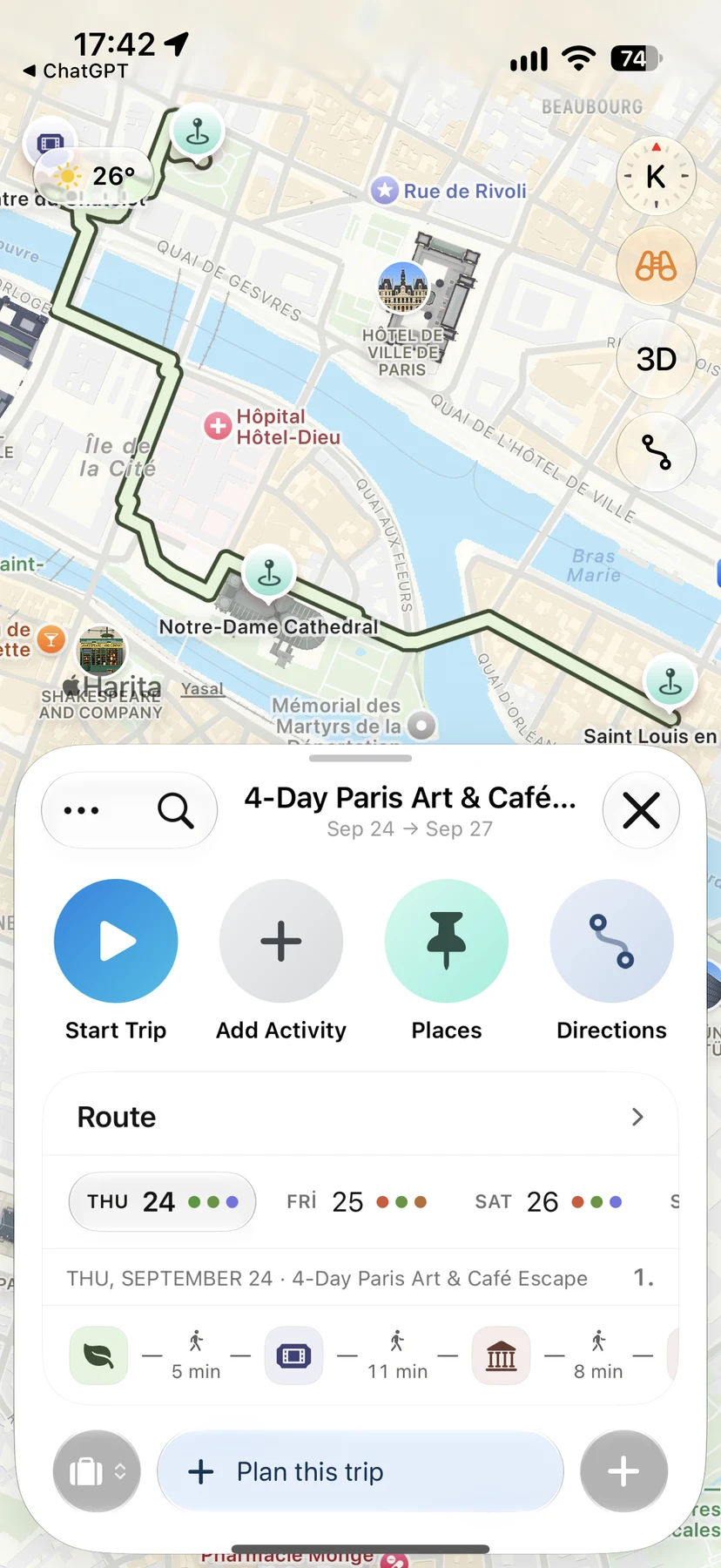



Apple Maps is already on your iPhone, and it is better for travel than many people think. It is a great place to collect places and to get around once you are there. Where it stops is turning those places into a plan for each day.
Here is how to get the most out of it, and when to add a planner on top.
Save places into Guides
Guides are your own lists of places in Apple Maps. Create one for the trip, such as "Lisbon October", and add places as you find them: restaurants from friends, sights from articles, cafés near your hotel.
Seeing the guide on the map gives you a first sense of where things are and which ones cluster together.
Look around before you go
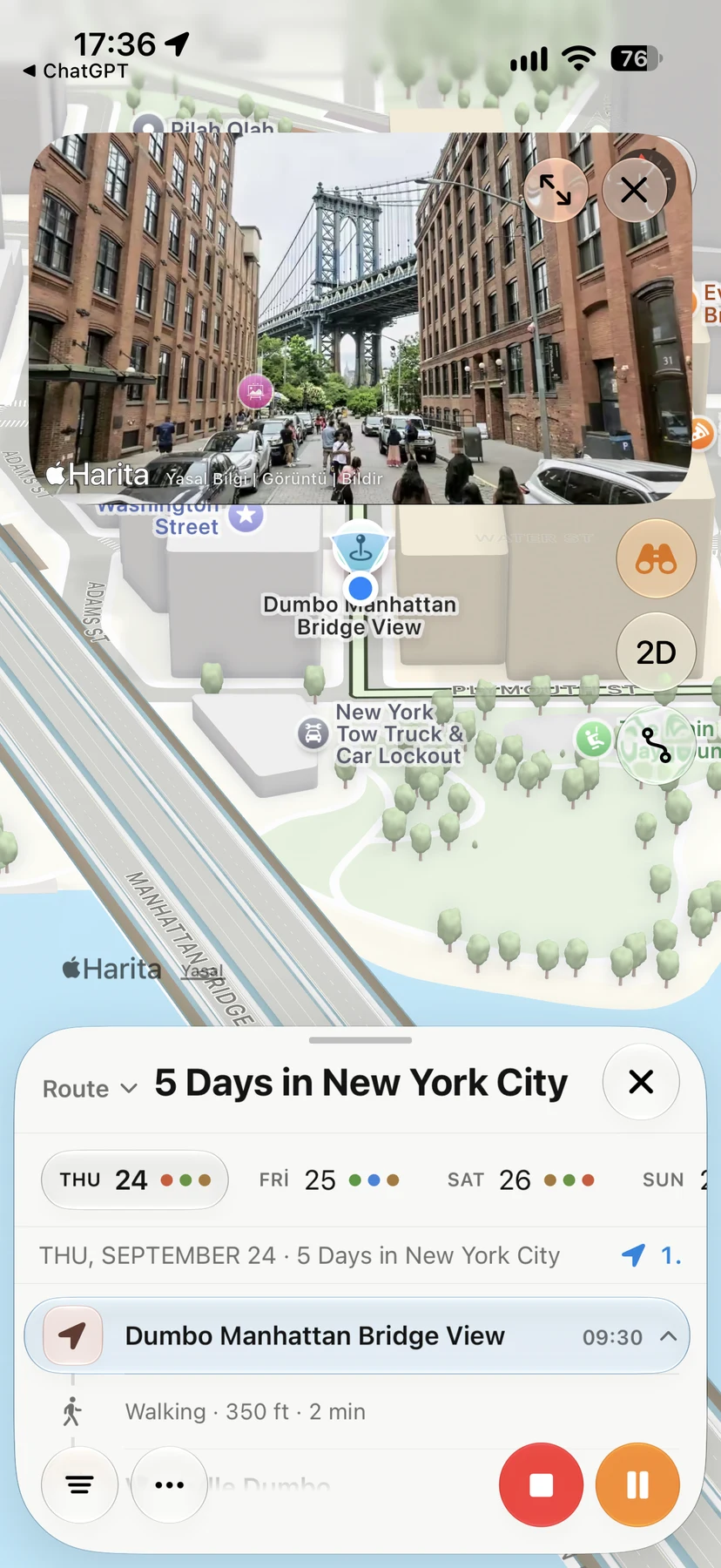
Where Look Around imagery is available, you can explore the streets around a place before you arrive. It is useful for checking the entrance of a hotel, how steep a street is or what a neighborhood feels like.
Get directions on the day
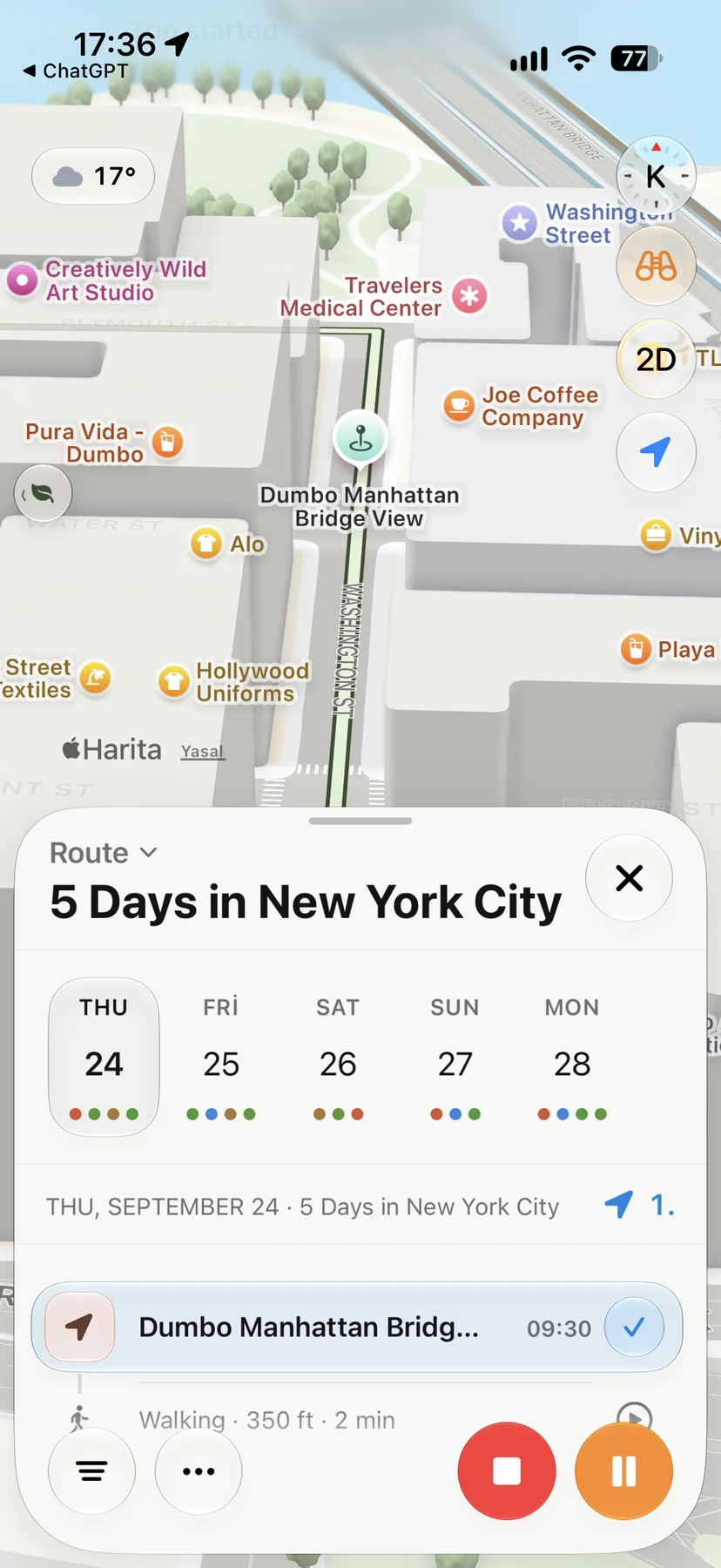
Apple Maps gives walking, transit and driving directions, with transit available in many major cities. On the day, it is the easiest way to get from one stop to the next.
Where Apple Maps stops
Apple Maps keeps lists of places, but a trip needs more:
- Days: which places go on which day, and in what order
- Time: how long each day's walks and transfers take in total
- Context: flights, check-in times and reservations next to the plan
- Changes: moving a stop to another day without rebuilding everything
That is the gap between a map and an itinerary.
Add a day-by-day planner that uses Apple Maps
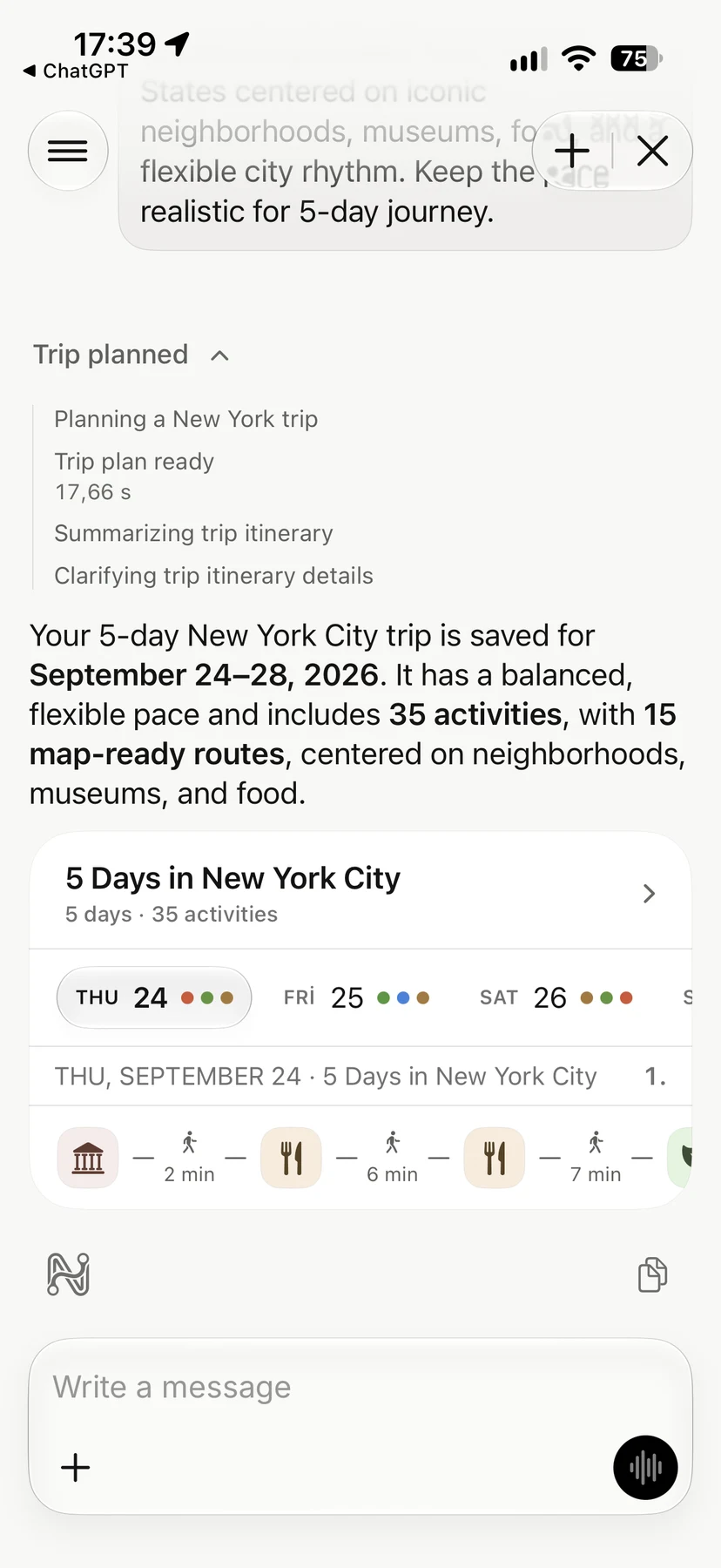
Navly is built on Apple Maps for exactly this gap. You save places, see them on the map, group them into days and see the route and travel times for each day. When it is time to go, Navly opens directions in Apple Maps, so you navigate with the app you already know.
Flights, stays and reservations live in the same timeline. If the plan changes, you can move a stop or ask Navly to adjust the day and review the proposal first.
A simple workflow
- Collect: save interesting places as you research.
- Group: look at them on the map and pick one area per day.
- Order: arrange each day's stops in one direction.
- Go: follow the day and open directions in Apple Maps for each leg.
Manual planning in Navly is free, so you can try this workflow on your next trip at no cost.
Questions travelers ask
Can you plan a trip in Apple Maps?
Yes, for collecting places and getting around. You can save places into Guides, preview streets with Look Around where available, and get walking, transit and driving directions. It does not organize places into a day-by-day itinerary.
Can Apple Maps make a multi-day itinerary?
Not on its own. Guides are lists of places, not days. For a plan with days, order and travel times, use an itinerary app that works with Apple Maps, such as Navly.
Sources to check before you go
Navly for iPhone
Put every place on one map
Save places from any guide, see where they sit on the map and group them into days that do not zig-zag across the city.

Free manual planning. AI with Pro or Max.




Keep planning

Trip planning
Solo Travel Itinerary: How to Plan Days on Your Own
Plan a solo trip itinerary that fits your energy: a light first day, one area per day, flexible evenings, safety basics and a plan you can change as you go.
Trip planning · 2 min read
Trip planning
How to Make a Travel Itinerary: A Day-by-Day Template
Make a travel itinerary that works on the ground: a simple day-by-day template, how to order stops, how much to plan per day and what to keep flexible.
Trip planning · 2 min read

Trip planning
How to Plan a Trip with AI on iPhone, Step by Step
Plan a trip with AI without losing control: what to ask, what to check, and how to turn an AI draft into a day-by-day itinerary you can follow on your iPhone.
Trip planning · 2 min read