Trip planning

How to Plan a Trip with AI on iPhone, Step by Step
Plan a trip with AI without losing control: what to ask, what to check, and how to turn an AI draft into a day-by-day itinerary you can follow on your iPhone.
By Navly EditorialPublished 2 min read

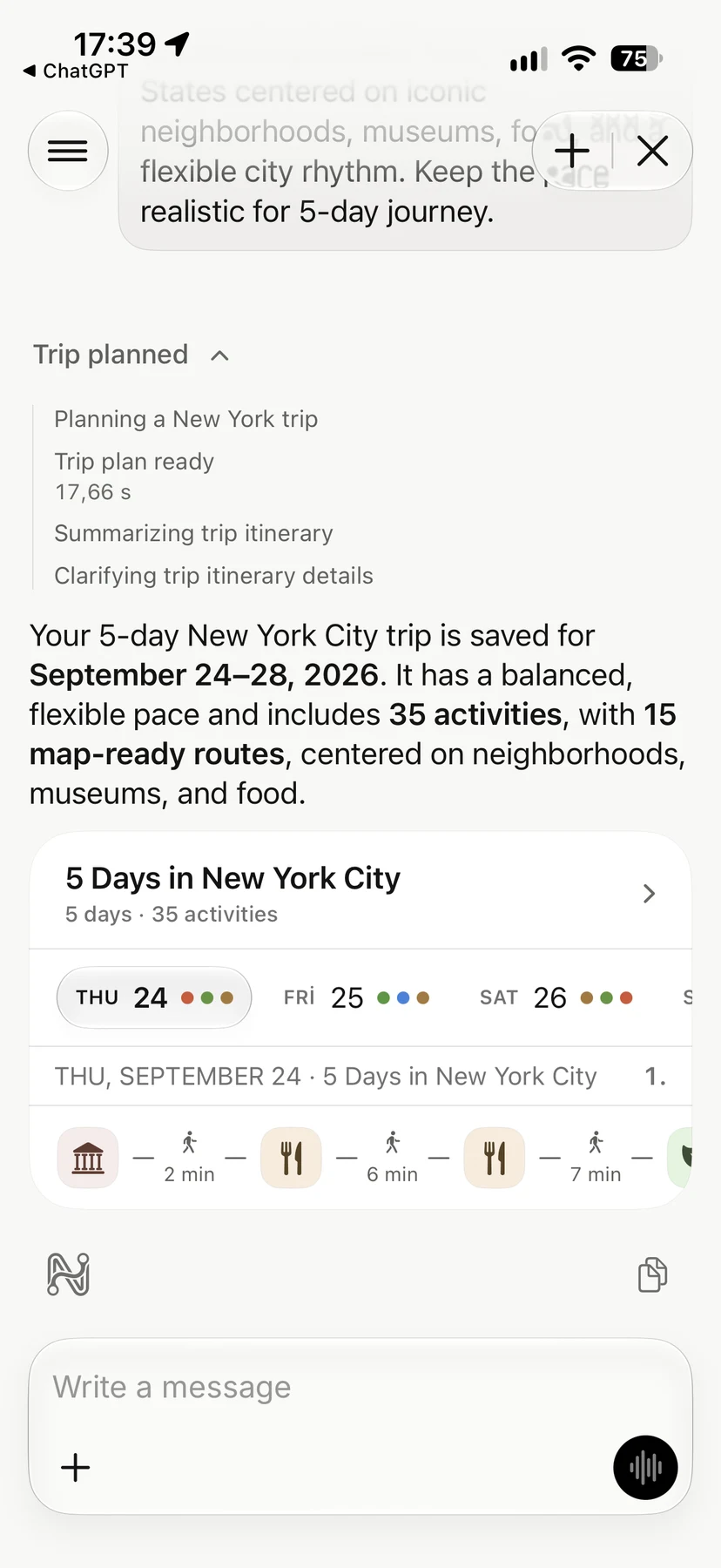


AI is good at the slow parts of trip planning: turning a vague idea into a list of places, grouping them into days and suggesting an order. It is less good at the details that change, such as today's opening hours or whether a restaurant takes walk-ins.
The trick is to use AI for the draft and keep the decisions yourself. Here is a step-by-step way to do that on your iPhone.
1. Start with what is already fixed
Before you ask for ideas, tell the planner what cannot move:
- your dates and arrival and departure times
- where you are staying each night
- bookings you already have, such as a museum slot or a dinner reservation
A plan built around these is one you can actually follow. A plan that ignores them looks great until the first morning.
2. Describe the trip, not just the city
"Three days in Lisbon" gets you a generic list. "Three days in Lisbon, staying in Chiado, slow mornings, we love viewpoints and food markets, no museums on the first day" gets you a plan that fits.
Mention your pace, interests, budget and who you are traveling with. Also say what to avoid.
3. Review every change before it lands
The biggest risk with AI planning is silent changes: a stop disappears, a day gets reshuffled and you only notice on the street. A good assistant shows you exactly what it wants to add, move or remove, and waits for your confirmation.
In Navly, every AI suggestion comes as a proposal. You see the places and days involved, then confirm or decline. Supported changes can be undone.
4. Check the route, not just the list
A list of great places can still make a bad day if they are on opposite sides of the city. Look at each day on the map:
- Do the stops follow one direction, or does the day zig-zag?
- How long are the walks or transfers between them?
- Is there a hill, a river or a long transfer the list does not show?
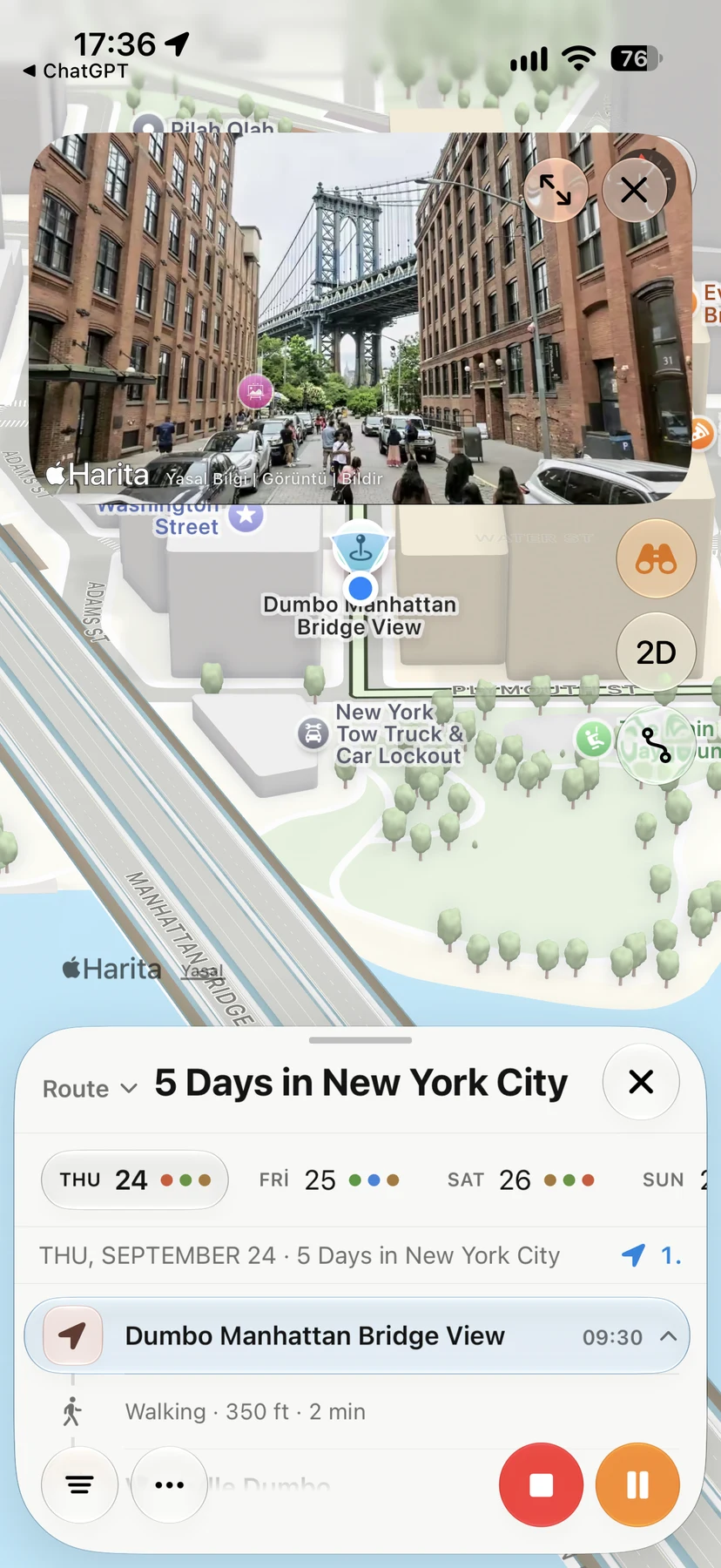
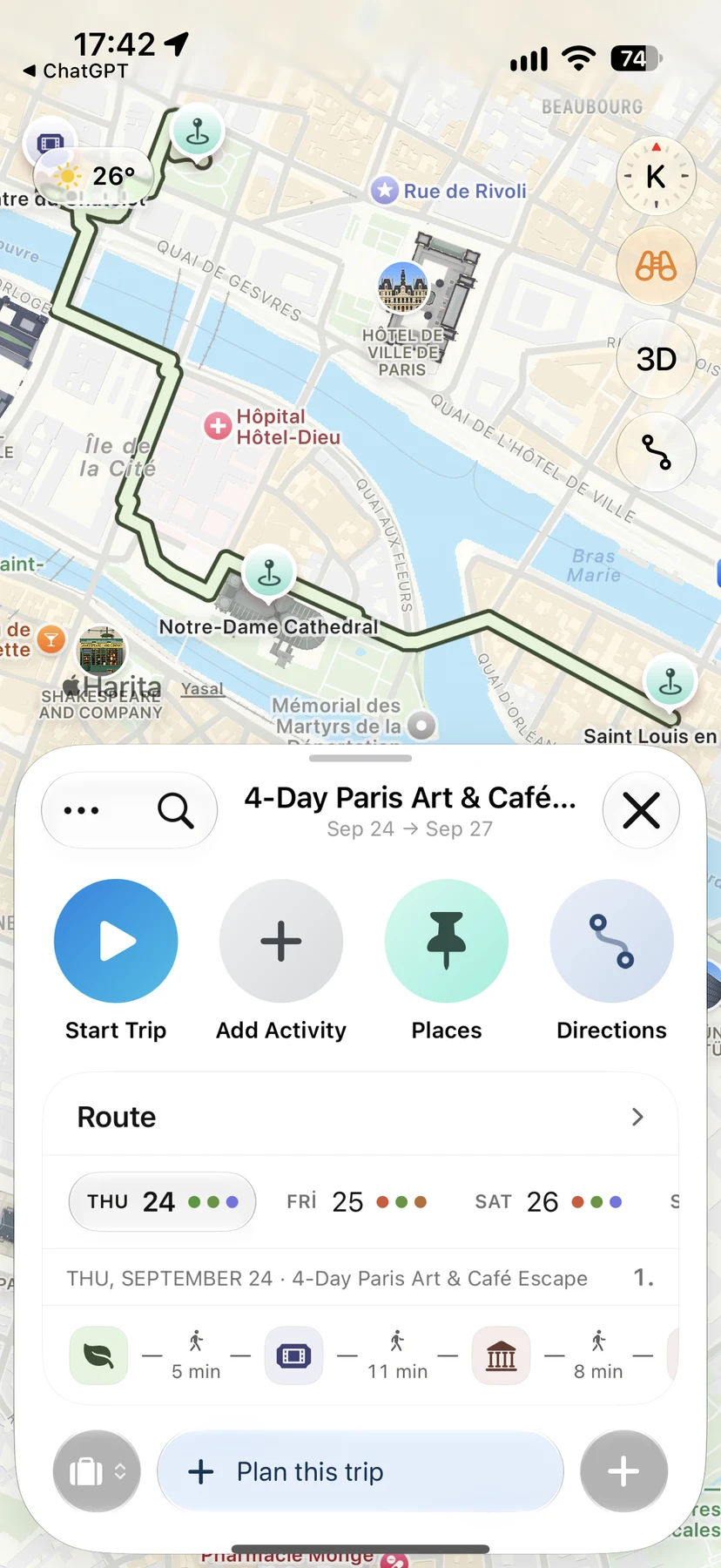
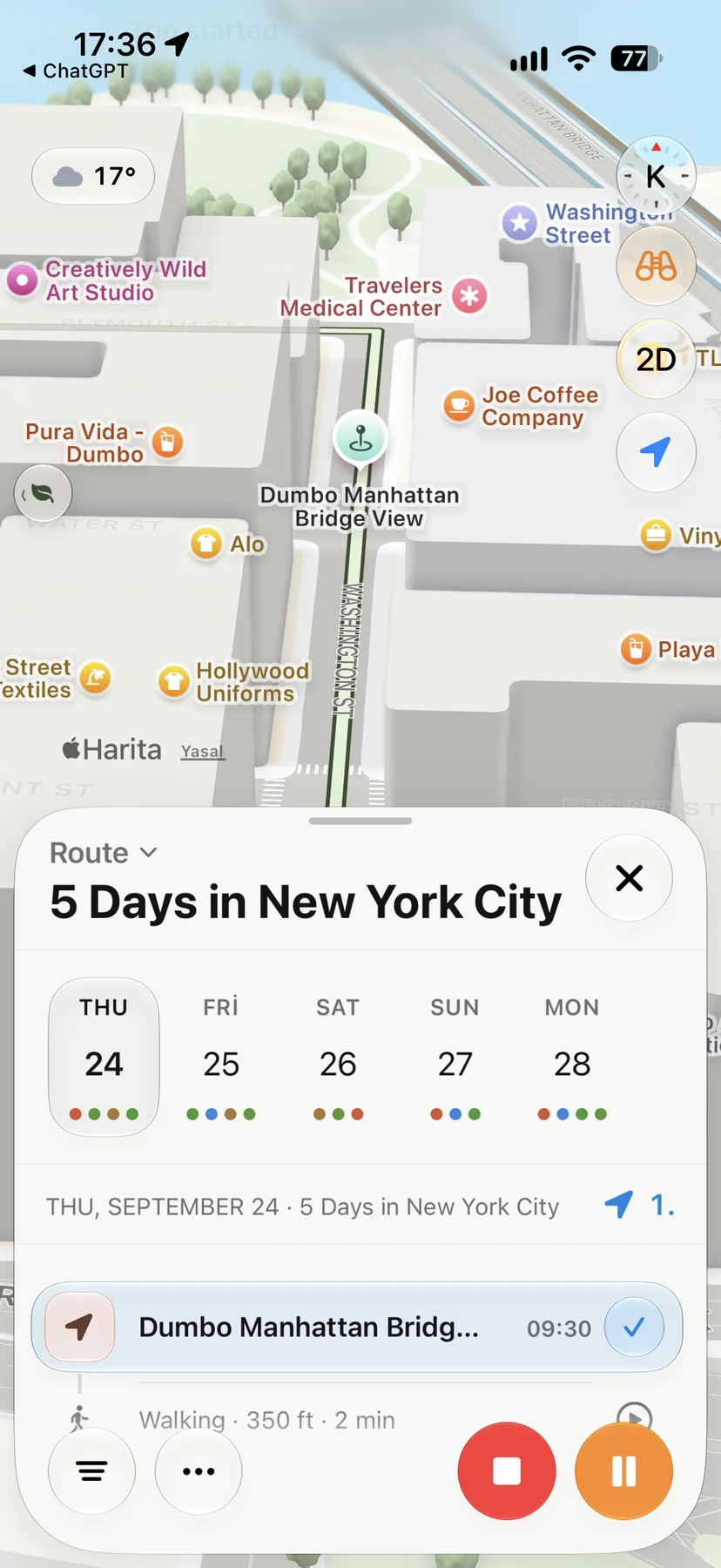
Navly puts each day's stops on Apple Maps with the travel time between them. You can catch a bad order before you are in it.
5. Verify what changes
Before the trip, check opening hours, ticket rules and transport for the stops that matter most. Treat AI suggestions as a starting point, then confirm details with official sources.
6. Keep adjusting during the trip
Plans change: rain, a long lunch or a place you love and want more time in. Instead of starting over, ask for an adjustment, such as "make tomorrow slower" or "swap the museum for something outdoors". Then review the proposal and keep going from where you are.
The short version
- Give the AI your fixed points and how you like to travel.
- Let it draft the places and days.
- Review every change before accepting it.
- Check each day on the map.
- Verify the details that change.
You can do this in a notes app and a map, or in one place with Navly's AI travel assistant. Manual planning is free; AI planning is part of Pro or Max.
Questions travelers ask
Can AI plan a whole trip?
AI can draft a useful plan quickly: places, the order of days and ideas you had not considered. You still need to check what changes, such as opening hours, bookings and travel times, before you rely on it.
What should I tell an AI trip planner?
Give it your dates, where you are staying, how you like to travel (pace, budget, interests) and anything fixed, such as flights or reservations. The more of your real constraints it knows, the better the draft.
Is Navly's AI planning free?
Manual planning in Navly is free. AI planning, where Navly drafts and adjusts your trip, is part of Navly Pro or Max.
Navly for iPhone
Ask Navly to draft the plan
Describe the trip you want. Navly proposes places and days, and you review every change before it is added to your trip.

Free manual planning. AI with Pro or Max.






Keep planning

Trip planning
Solo Travel Itinerary: How to Plan Days on Your Own
Plan a solo trip itinerary that fits your energy: a light first day, one area per day, flexible evenings, safety basics and a plan you can change as you go.
Trip planning · 2 min read
Trip planning
How to Plan a Trip with Apple Maps (and When You Need More)
Use Apple Maps to plan a trip on iPhone: save places in Guides, preview streets with Look Around, get directions and know where a day-by-day planner helps.
Trip planning · 2 min read
Trip planning
How to Make a Travel Itinerary: A Day-by-Day Template
Make a travel itinerary that works on the ground: a simple day-by-day template, how to order stops, how much to plan per day and what to keep flexible.
Trip planning · 2 min read